Return to IFS 110 Main
Menu!
Click
 at the end
of these directions to
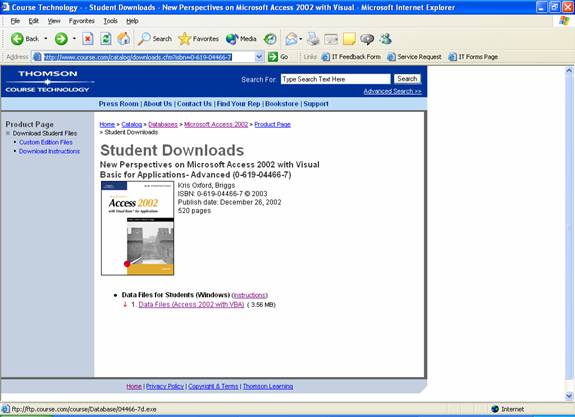
visit the book publisher site to start the process. The Download
Student Data Disk web site looks like the page displayed below. Click
icon to enlarge the picture. Click the Back button on browser when
finished viewing.
at the end
of these directions to
visit the book publisher site to start the process. The Download
Student Data Disk web site looks like the page displayed below. Click
icon to enlarge the picture. Click the Back button on browser when
finished viewing.
Click 1. Data Files (Access 2002 with
VBA) option 1 (3.56 MB) from the above diagram.
The following Dialog box
will be displayed.
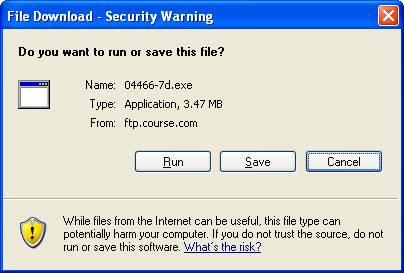
Click the
Run button, the following
dialog box will be displayed.
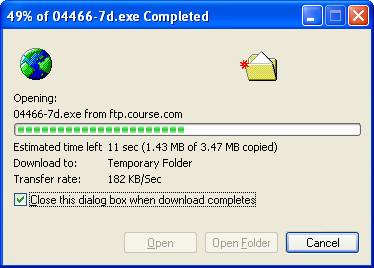
The following Dialog box
will be displayed.
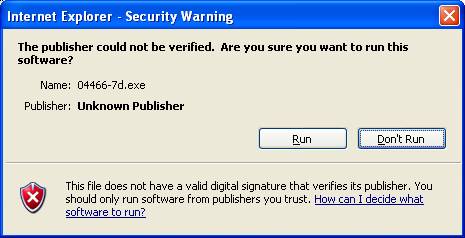
Click the
Run button, the following
dialog box will be displayed.
![WinZip Self-Extractor - 04466-7d[1].exe Dialog Box](graphics/datadisk/diskvba4.jpg)
Click the Browse Button to Change the Unzip
to Folder: option as indicated in the dialog box listed below to Desktop
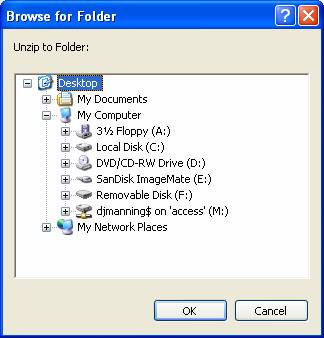
Click
 to the message
box. The following Dialog box
will be displayed.
to the message
box. The following Dialog box
will be displayed.
![WinZip Self-Extractor - 04466-7d[1].exe Dialog Box](graphics/datadisk/diskvba6.jpg)
Click
 the
following dialog box will be displayed as the files in the 04466-7d[1].EXE file
are unzipped to the A drive.
the
following dialog box will be displayed as the files in the 04466-7d[1].EXE file
are unzipped to the A drive.
![WinZip Self-Extractor - 04466-7d[1].exe Dialog Box Unzip Progress](graphics/datadisk/diskvba7.jpg)
The following message will appear when the 75 files are unzipped
successfully.
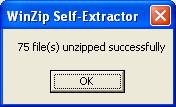
Click
to the message
box.
![WinZip Self-Extractor - 04466-7d[1].exe Dialog Box](graphics/datadisk/diskvba9.jpg)
Click
 , when
the unzip process is completed.
, when
the unzip process is completed.
Go to the desktop and drag or copy the 10 Tutorial folders to a
folder on your hard drive or a CD-ROM
Click the command
button at the end
of these directions to
visit the book publisher site to start the process to make
Student Data Disk.
Return to IFS 110 Main
Menu!